
Cancellation and deposit policies, and no-shows
- Free
- Solo
- Shop
- Booking rules, your policy text and marking no-shows: Free, Solo and Shop.
- Online deposits (at launch): Solo and Shop.
- No-show rules (coming soon): Solo and Shop.
Updated
ServiceSprig opens to everyone on Tue 8 Dec 2026. Until then sign-up is by early access, paid plans and online payments aren’t switched on, and prices are proposed launch prices. Anything marked “at launch” starts that day; anything marked “planned” isn’t built yet. Join early access
On this page
Set your cancellation window
- Go to Settings and find Booking rules.
- In Clients can cancel or change online up to (hours before), enter a number, like 24. Use 0 to let clients change or cancel any time before the appointment.
- Set Minimum notice (minutes) and Book up to (days ahead) if you want to.
- Tap Save booking rules.
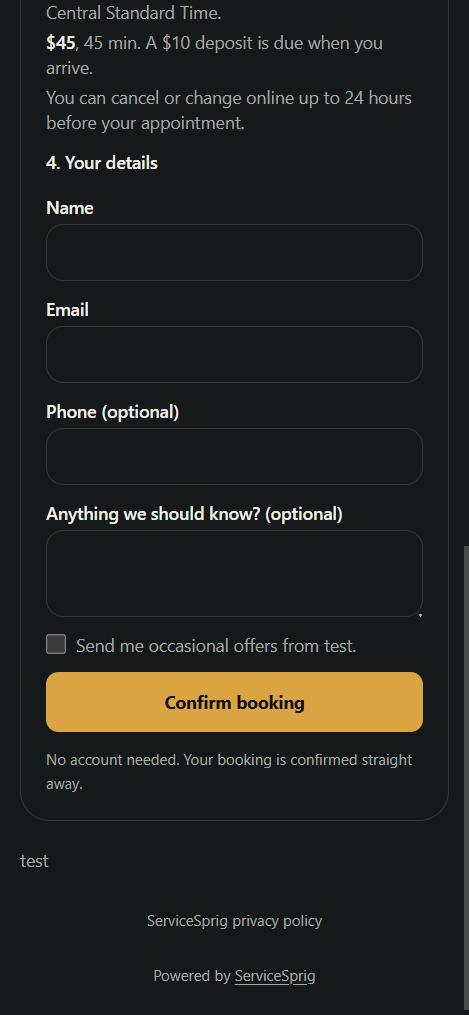
Clients see "You can cancel or change online up to 24 hours before your appointment." when they book, and again in their confirmation email. Inside the window they can't change or cancel online, so they'll need to contact you.
Write your booking policy
In the same panel, use Booking policy shown to clients for anything else clients should know: late arrivals, deposits, what to bring. Keep it under 300 characters. It's shown to clients when they book.
Deposit policy (at launch)
When you take deposits online (from launch, on Solo and Shop; see Payments), your cancellation window is also your deposit rule:
- If a client cancels at least your window ahead, the deposit is refundable. Clients see "Your deposit is refunded if you cancel at least 24 hours before. After that, your business keeps it."
- Later than that, you keep it.
- Refunds don't happen on their own: you refund on the Payments page.
Mention your deposit rule in Booking policy shown to clients as well, so it's clear before anyone pays.
Mark a no-show
When a client doesn't turn up:
- Open the appointment on Calendar. Once its time has passed, you'll see Mark done and No-show.
- Tap No-show.
The owner can tap Undo no-show if it was a mistake. No-shows show on the client's record, on Front desk, in your monthly numbers on Payments, and as a no-show rate in Reports.
No-show rules (coming soon)
Automatic no-show rules are being built and aren't in ServiceSprig yet. Charging a no-show or late-cancel fee to a saved card isn't available at launch either. For now, a deposit taken at booking is the way to protect your time.
Stuck? Email hello@servicesprig.com and we'll help.
Next guide: Run classes: spots, waitlist, check-in and refunds