
Intake and consent forms
- Free
- Solo
- Shop
Free includes 1 form. Solo and Shop include unlimited forms. Owners and managers build forms.
Updated
ServiceSprig opens to everyone on Tue 8 Dec 2026. Until then sign-up is by early access, paid plans and online payments aren’t switched on, and prices are proposed launch prices. Anything marked “at launch” starts that day; anything marked “planned” isn’t built yet. Join early access
On this page
Forms are emailed to clients automatically when they book the services you choose. Answers are kept on the client's record.
Start from a template (quickest)
- Go to Forms and tap Browse templates.
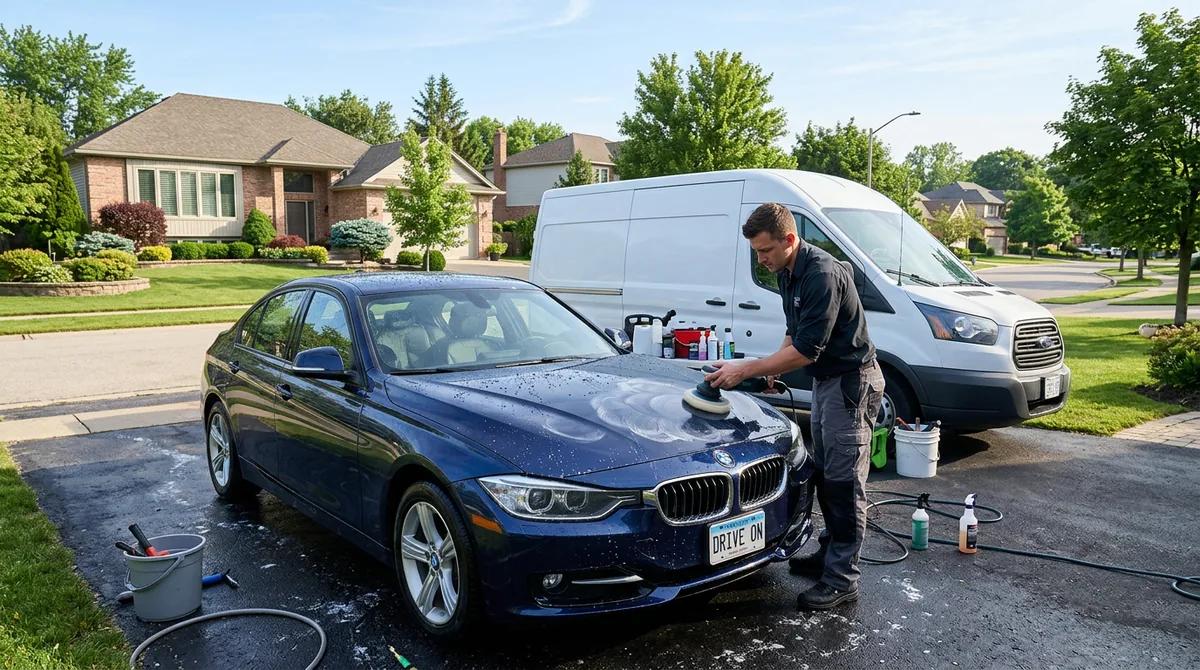
- Pick one: New client intake (hair), Colour & chemical consent + patch test, Lash & brow consent, Tattoo consultation & consent, Barber notes, Pet grooming intake or Vehicle detailing intake. Tap Preview to look first.
- Tap Use this template.
- The copy starts switched off. Check the wording, choose the services it goes with (see below), tick On and tap Save form.
Templates are a starting point, not legal advice. Read them and change anything that doesn't fit your business.
Build your own form
- Go to Forms and tap New form.
- Add a Title and, if you like, an Introduction shown at the top.
- Choose How often: Every booking, Once per client or Once a year.
- Under Questions, pick a type from Add a question and tap Add. Types are Section heading, Short answer, Long answer, Pick one, Pick any, Agree checkbox, Date, Number, Phone, Email, Signature (typed name) and Photo upload.
- Give each question its label, and tick Required if it must be answered. For Pick one and Pick any, type one option per line.
- Tap Preview to see it as clients will.
- Tap Save form.
You can have up to 60 questions. Changing the questions later saves a new version; answers already sent keep the wording they were answered with.
Signatures and consent forms
- Add a Signature (typed name) question. A form can have one.
- Tick Consent form. Consent forms need a signature question.
The client ticks "I agree, and I'm signing this form by typing my full name below" and types their name. It's a typed-name signature, not a drawn one. The client's record shows Consent signed or Not signed.
Photo questions
- Add a Photo upload question.
- Choose How many photos, from 1 photo up to Up to 5 photos. A form takes up to 10 photos in all.
- In Help text, say what to photograph, like "the area you'd like tattooed" or "your dog's coat today".
Clients add photos from their phone's camera or gallery. Photos stay private to your business, and location data is removed from every photo. Each photo can be up to 8 MB.
Attach a form to services
You choose services on the form itself, not on the Services page.
- Open the form (Edit).
- Under Send with bookings for, choose All services or Only these services and tick the ones you want.
- Make sure On is ticked, and tap Save form.
With no services ticked, the form is kept but never sent.
When clients get the form
When a booking for one of those services is confirmed, the client gets an email: "Please fill in your form before your visit". They tap Fill in the form, answer, and tap Send my answers. Answers can't be changed after sending. The link stops working once the form is sent, or a day after the appointment.
- Once per client and Once a year forms aren't sent again if the client already has an answer that counts.
- Bookings brought in with Switch from another tool don't send forms.
- Forms only go out when email is switched on for your business. If it isn't, the Forms page says so.
See the answers
- Forms > Responses lists every answer. Filter by form, type or dates, then tap View.
- Each response shows the client, the appointment, the form version, photos and the signature. Tap Print for a paper copy.
- Answers also appear in Forms on the client's profile.
Turn a form off or delete it
Tap Turn off on the Forms list to stop new requests. Answers are kept. A form that clients have already answered can't be deleted, so turn it off instead.
On the Free plan
Free includes 1 form. You can keep editing it. To use a different form, turn the first one off, or upgrade to Solo for unlimited forms.
Stuck? Email hello@servicesprig.com and we'll help.
Next guide: Get booked more