
Clients: import, notes, pet and vehicle profiles, export
- Free
- Solo
- Shop
Import, export, notes, and pet and vehicle profiles are on every plan. Only owners and managers can see the client list.
Updated
ServiceSprig opens to everyone on Tue 8 Dec 2026. Until then sign-up is by early access, paid plans and online payments aren’t switched on, and prices are proposed launch prices. Anything marked “at launch” starts that day; anything marked “planned” isn’t built yet. Join early access
On this page
Clients land on your list when they book. You can also add them yourself, bring a whole list over from a spreadsheet or your old booking tool, and download everything whenever you like.
Add a client by hand
- Go to Clients.
- In Add a client, fill in the Name. Email and Phone are optional.
- Add Private notes if you like, such as preferences or allergies. Clients never see them.
- Tick Agreed to marketing messages only if the client told you they agree.
- Tap Add client.
If someone with the same email or phone is already on file, ServiceSprig tells you who. Search for them instead, or tick Add anyway to make a separate client.
Import a spreadsheet (CSV)
Use this when you just have a list of clients.
- Save your list as a CSV file. It needs a Name column (or First name and Last name). Email, Phone, Birthday and Notes columns are used if you have them.
- On Clients, find Import from a spreadsheet.
- Choose your file and tap Import clients. It imports straight away; there's no preview step.
Good to know:
- Up to 5,000 rows and 3 MB per file. Split bigger lists into several files.
- Nobody is added twice. If a client with the same email or phone is already on file, their blank details are filled in and new notes are added to theirs.
- Marketing consent is never imported. Clients can opt in again.
- When it's done, you'll see how many were imported, how many were already on file, and how many rows were skipped (no name, or a bad email).
Switch from another booking tool
Moving from another app? Switch from another tool brings your clients, your services and your upcoming bookings over in one sitting. Nothing is saved until you press Import, nobody is emailed, and you can undo it for 7 days.
- On Clients, tap Switch from another tool.
- Your old tool: pick the app you're leaving: Fresha, Booksy, Square Appointments, Vagaro, GlossGenius, MassageBook, or Another tool or a spreadsheet. ServiceSprig shows you how to download your files from it. Tap Next: files.
- Files: add any of the three files: Clients, Services and Upcoming bookings. You can skip any of them. Check each column was matched, and fix any with the menus. Tap Next: match.
- Match: tell ServiceSprig which of your team is which, and match services. Services created here start hidden from online booking until you turn them on in Services. Tap Next: check.
- Check: nothing is saved yet. Each booking shows whether it fits, or why not (for example Clashes with another booking or Outside working hours). Untick any you don't want. Tap Next: messages.
- Messages: choose when appointment reminders start for the imported bookings. Pick Start sending them from a date (the day after you turn off your old tool's reminders, so nobody gets two) or Not yet.
- Tap Import.
Good to know:
- Only bookings from today on come over. Past, cancelled and no-show bookings don't.
- Files can be up to 3 MB each: up to 5,000 clients, 300 services and 2,000 bookings.
- Nobody is emailed or texted when you import: no confirmations, forms or alerts.
- On the Free plan, clients can book online up to 30 times a month. Bookings you import or add yourself don't count (see Plans and billing).
- We haven't tested real export files from every tool yet. For Fresha and Booksy, ServiceSprig tells you to check the column choices carefully.
- Only import your own clients, not lists you bought or got from someone else.
Undo an import: under Your imports, tap Undo import within 7 days. It removes that import's bookings that haven't changed since (bookings that were moved, checked in or paid stay), plus the clients and services it added that nothing else uses.
Client notes
- Open a client from Clients.
- In Details, write in Private notes. They're never shown to the client or sent to AI tools.
- Tap Save client.
The profile also shows the client's Appointments, any Forms they've filled in, and their visits and spend.
Pet and vehicle profiles
Groomers can keep each client's pets, and detailers each client's vehicles. Turn on the one that fits your business:
- Go to Settings and find Client profiles.
- Choose Pets or Vehicles (or None).
- Tap Save client profiles. Switching later never deletes saved pets or vehicles.
Pets: on a client's profile, open Add a pet. Add the name, species, and (optionally) breed, size, weight, coat, temperament tags like Nervous or Hates the dryer, handling notes and vet. Tap Add pet. Under Vaccines, add each vaccine with its expiry date and a photo of the card. ServiceSprig doesn't check expiry dates with the vet: they're what you enter.
With Pets on, online booking asks for the pet's name. Pets a client adds when booking show Check details: check them, then tap Looks right.
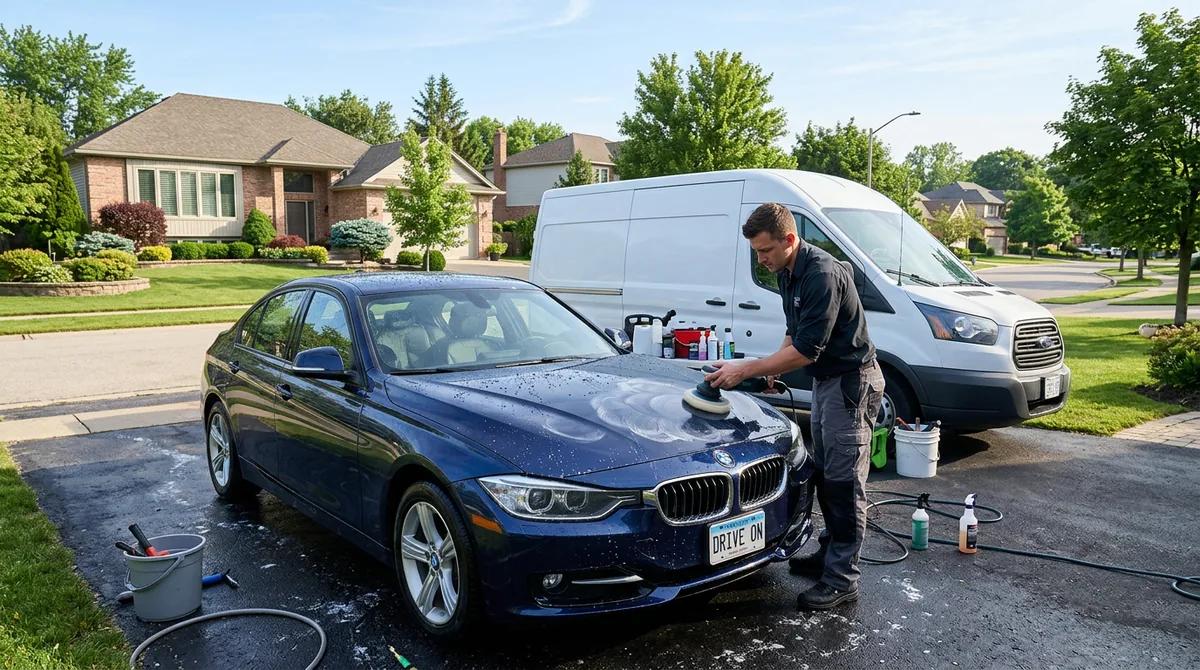
Vehicles: open Add a vehicle. Enter the make, the model, or both, plus the year, size, colour and notes if you like. Tap Add vehicle. Online booking asks for the make and model.
Your team sees pets and vehicles on their own appointments, with handling notes on each visit.
Merge duplicates
- On Clients, tick the two clients who are the same person.
- Tap Merge 2 selected.
- Choose which name, email, phone and marketing choice to keep. Notes from both are combined.
- Tap Merge clients and confirm. This can't be undone.
A client's profile also lists Possible duplicates with a Merge button.
Export your data
Your data is yours, on every plan.
- Client list: on Clients, tap Export CSV. It has every client with their contact details, notes, marketing consent, visits and value. The columns match the import, so you can import the file again.
- Everything: go to Account and, under Your businesses, tap Export business data. Only the owner can do this. You get one file (JSON format) with all of your business's records. Photos and uploaded files are listed but not included.
Delete or anonymise a client
For a privacy request, open the client and use Delete client. Choose Anonymise (recommended) to remove their personal details but keep the bookings in your reports, or Delete everything. Tick I understand this can't be undone, then confirm. A client with recorded payments can only be anonymised.
Stuck? Email hello@servicesprig.com and we'll help.
Next guide: Intake and consent forms